

Introduction
Hello and welcome. We invite you to sit back and watch as we show you how easy you can use anynode as a connector between Microsoft Teams and a provider.
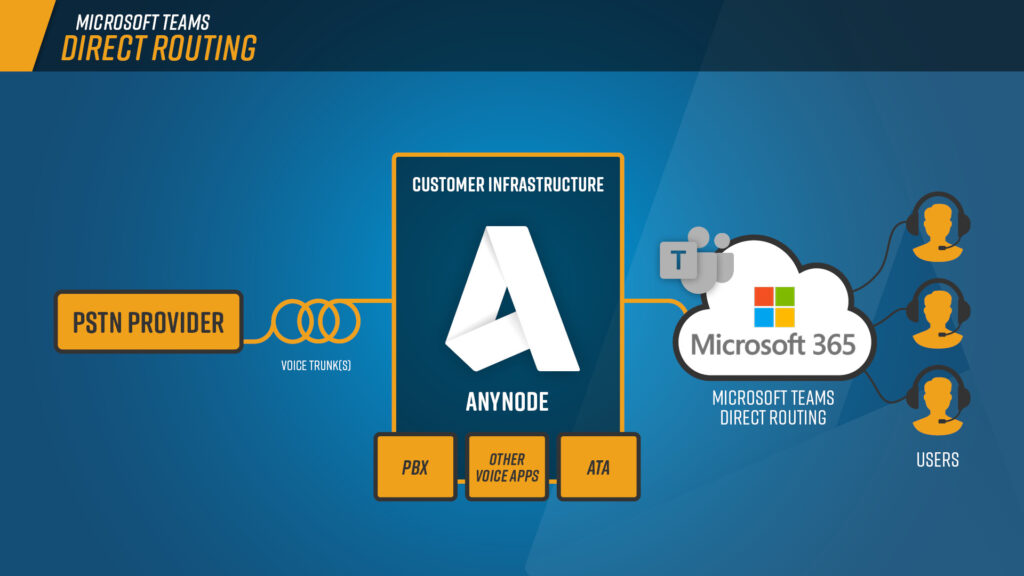
Microsoft now enables its Office 365 customers with Direct Routing to connect their office lines to the Office 365 Phone System directly. With Direct Routing, the Microsoft Teams Client can now be used for calls to the national and international telephone network. Of course, you can keep your provider, your existing PBX, and the existing numbers. anynode supports a very broad range of PBXs and versions and also provides rich number manipulations to fit in any PBX dial plan.
Installation of anynode
As an example, anynode is also available in a cloud service, like Microsoft Azure. Only a software solution like anynode makes it possible to use also virtualized systems, where operation and maintenance are more cost-efficient. Of course, you can still use on-premises resources for an anynode installation as well.

Prerequisites
For a successful configuration with Microsoft Teams Direct Routing, you need the following prerequisites:
• An Office 365 tenant that is used for the Microsoft Teams users homed in Office 365 with the required configuration and connection to anynode
• Microsoft Teams users that are enabled direct routing and licensed for Office 365 Phone System (E5 or E1/E3 with Office 365 Phone System add-on). For Microsoft Teams infrastructure and license requirements please check with the manufacturer given Plan Direct Routing information. https://docs.microsoft.com/en-us/MicrosoftTeams/direct-routing-plan
• A public and reachable IP address and public DNS entry with proper mapping for the anynode server (sbc1.sfb.te-systems.com for the standard paring example). Take note that the anynode server must be reachable through the public IP network.
• A fully Qualified Domain Name (FQDN) for anynode and its server where the domain portion of the FQDN has to be registered in the Direct Routing configurations of the Office 365 tenant. Check that the FQDN and public DNS entries resolve correctly to the proper IP address. Please note that you are not allowed using Microsoft’s automatically created tenant domain *.onmicrosoft.com for the FQDN of the anynode server.
• A public trusted certificate is needed for communication between anynode and Microsoft’s Direct Routing cloud service. This certificate must be generated by one of Microsoft’s accepted root certificate authorities for Direct Routing. Please note that the certificate needs to have anynode’s FQDN in the subject, common name, or subject alternate name fields. For details please check with the Public trusted certificate for the SBC section given in Microsoft’s Plan Direct Routing documents. https://docs.microsoft.com/en-us/microsoftteams/direct-routing-plan#public-trusted-certificate-for-the-sbc
• At least an anynode installation using the certified version 3.2 (or higher). Please note, Microsoft Teams Carrier Trunks require using anynode version 4.0!
Configuration with the Scenario Wizard
Let’s start to connect Microsoft Teams with a provider. anynode provides a scenario assistant to speed up frequently occurring configuration tasks.

We select the appropriate scenario, in this example, we create a relationship between Microsoft Teams Direct Routing and a VoIP provider. The Node Interconnection Assistant will save you time. It will do most of the configuration work for you by providing numerous predefined system profiles of VoIP providers, PBX’s and other Voice over IP systems. In a nutshell, it will take care of the major portions of the configuration in a few simple steps.
Creating a Node: MS Teams Direct Routing
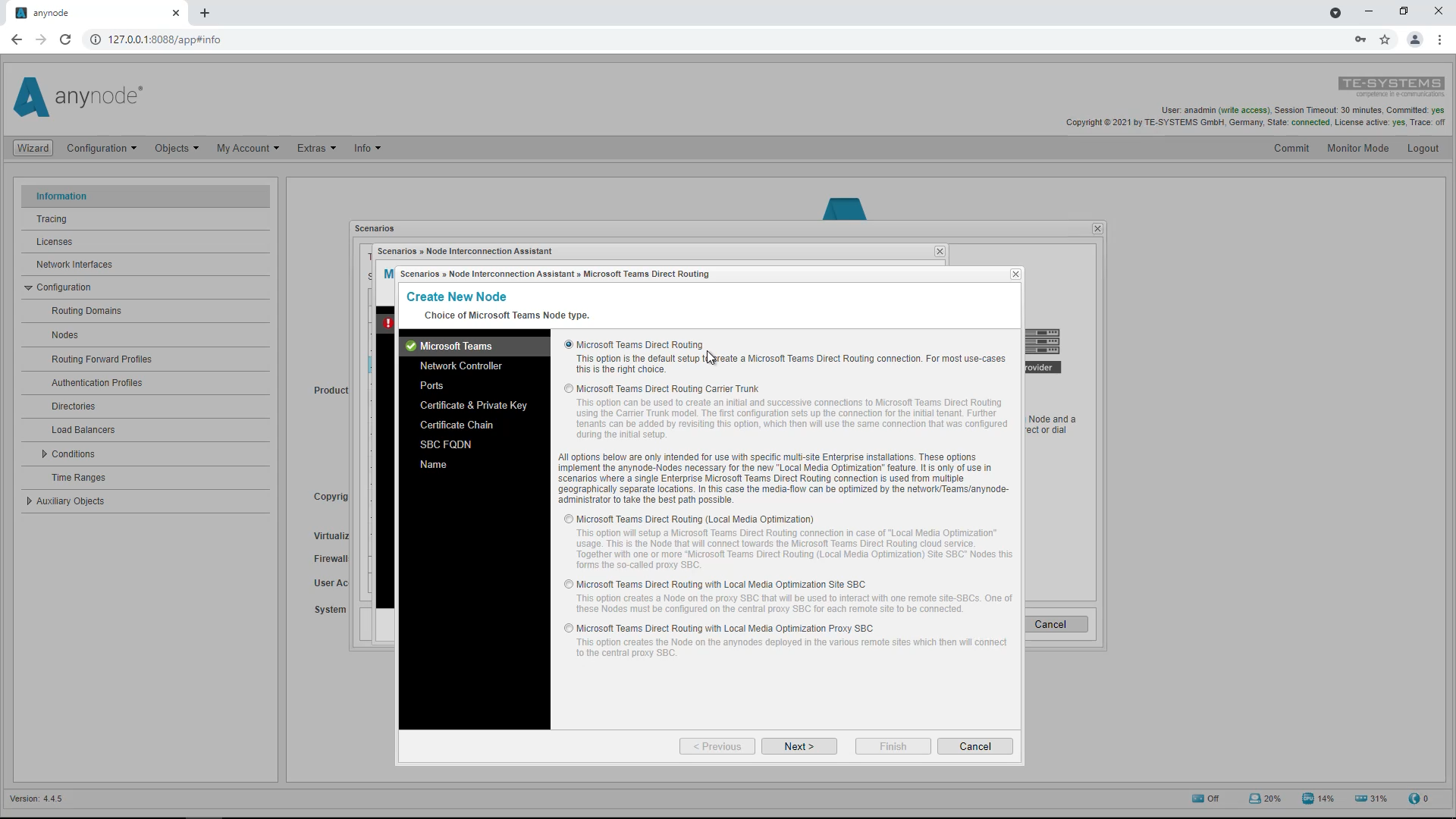
We start with the node “Microsoft Teams Direct Routing” and click on “Configure”.
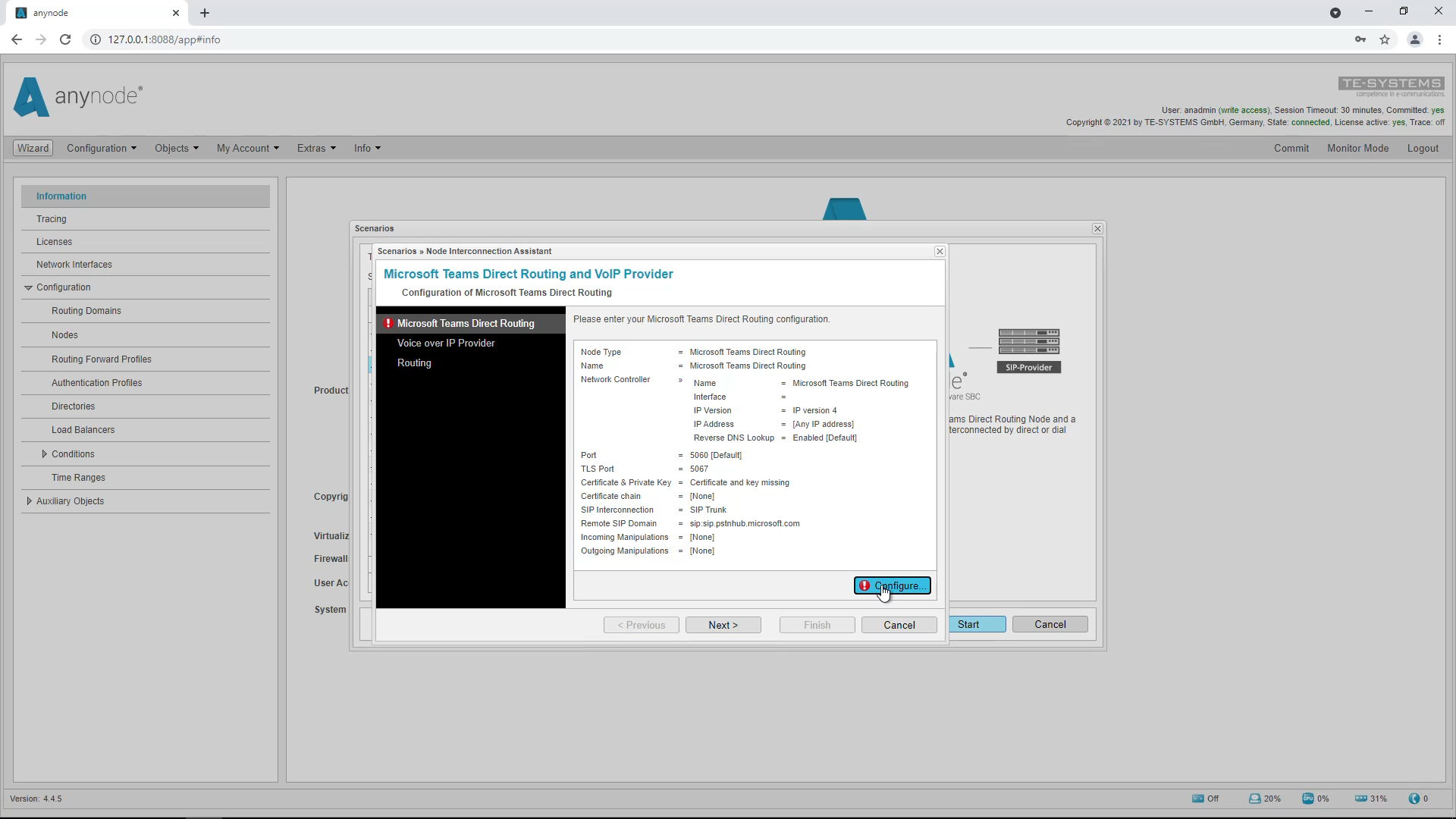
You now have several options to specify the type of Teams node. The usual and simplest method is Teams Direct Routing.
Local Media Optimization should only be used where the media streams should not all go through the Microsoft servers and anynode should intercept them beforehand. We recommend our video workshop specifically on this topic.
The carrier trunk is interesting for providers of multi tenant hosting systems.
For our example, you should choose the top and simplest method.
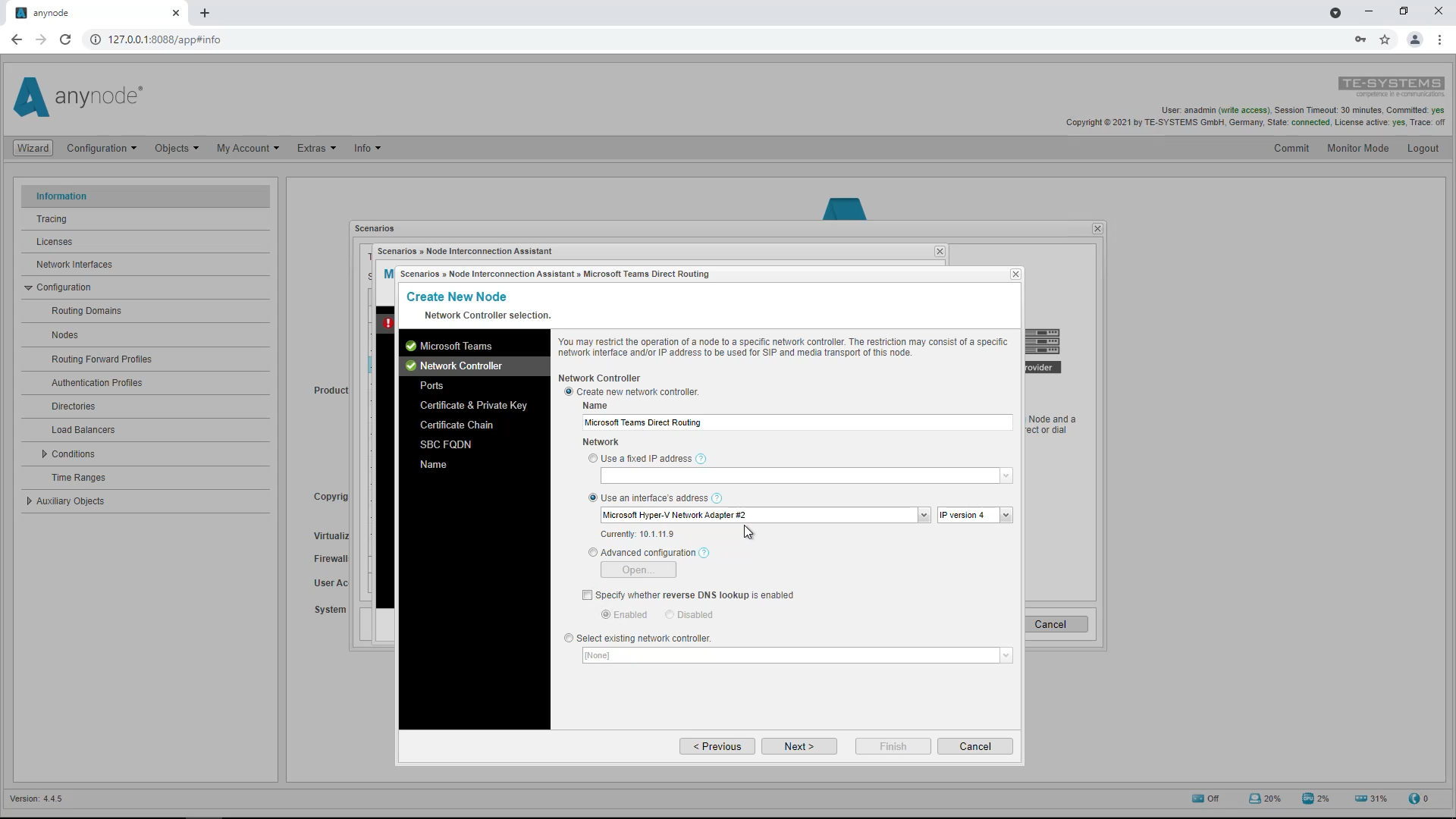
The configuration generally starts with setting up the node’s network controller. In our example, we select the Microsoft Hyper-V adapter as the network card.
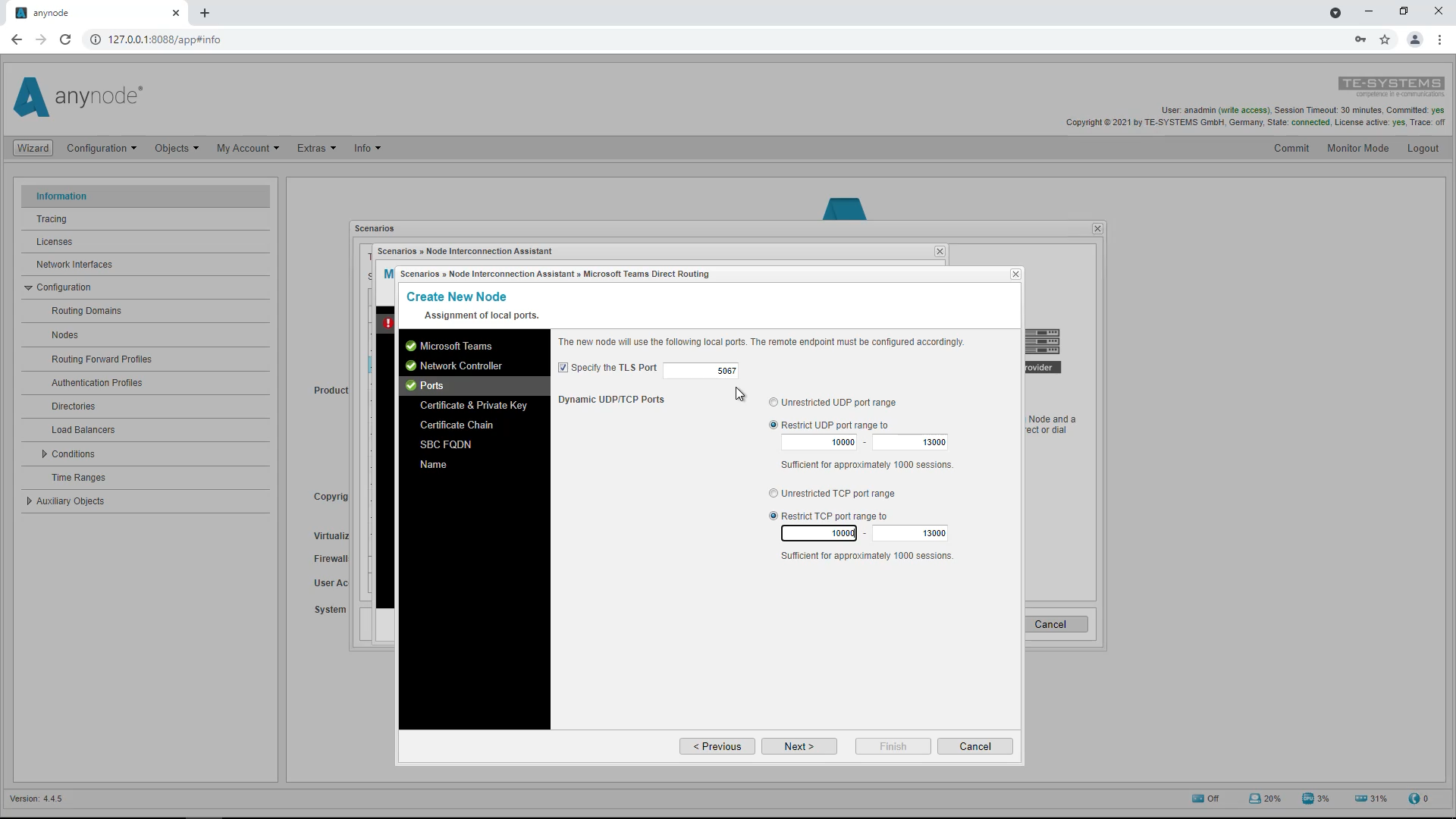
The wizard has automatically entered the ports at this point. Teams is always set to TLS. The Teams node suggests port 5067 by default. This is the port on which anynode expects the incoming TLS connections from Teams. This port must be configured on the Teams side in the PSTN OnlineGateway.
The next step is to provide a certificate and a corresponding private key.
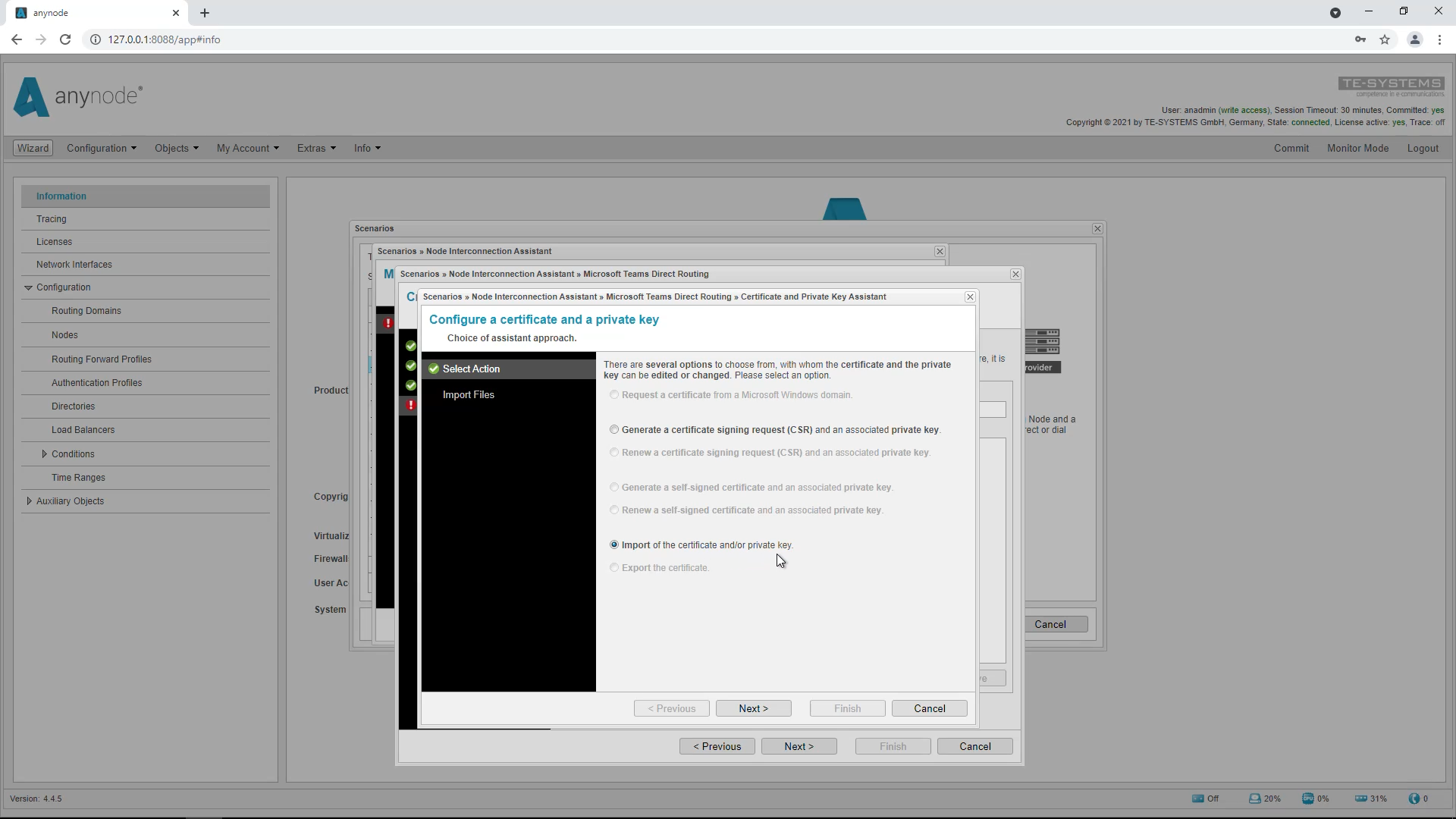
It is also possible to generate a Certificate Signing Request (CSR) and a corresponding private key. The certificate must be generated by one of the following Root Certificate Authorities listed in the Microsoft 365 Docs under “Plan Direct Routing”.
https://docs.microsoft.com/de-de/microsoftteams/direct-routing-plan
By default, the “Import of the certificate and/or private key” function is always enabled. We will now perform this.
We import the private key and then the certificate.
In our example we first select the key (key.pem) and then the certificate chain (chain.pem), because here the certificate is already included.
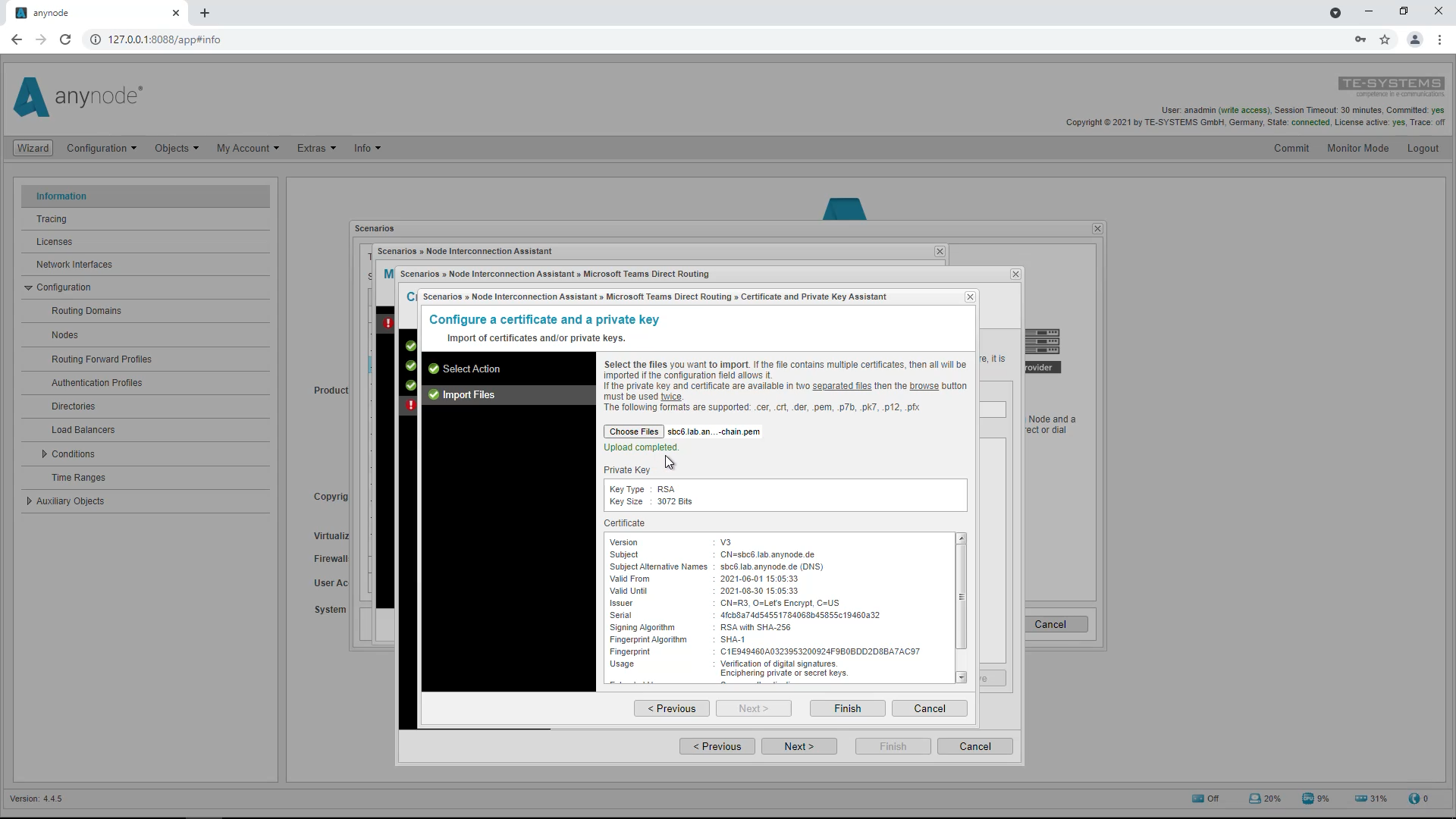
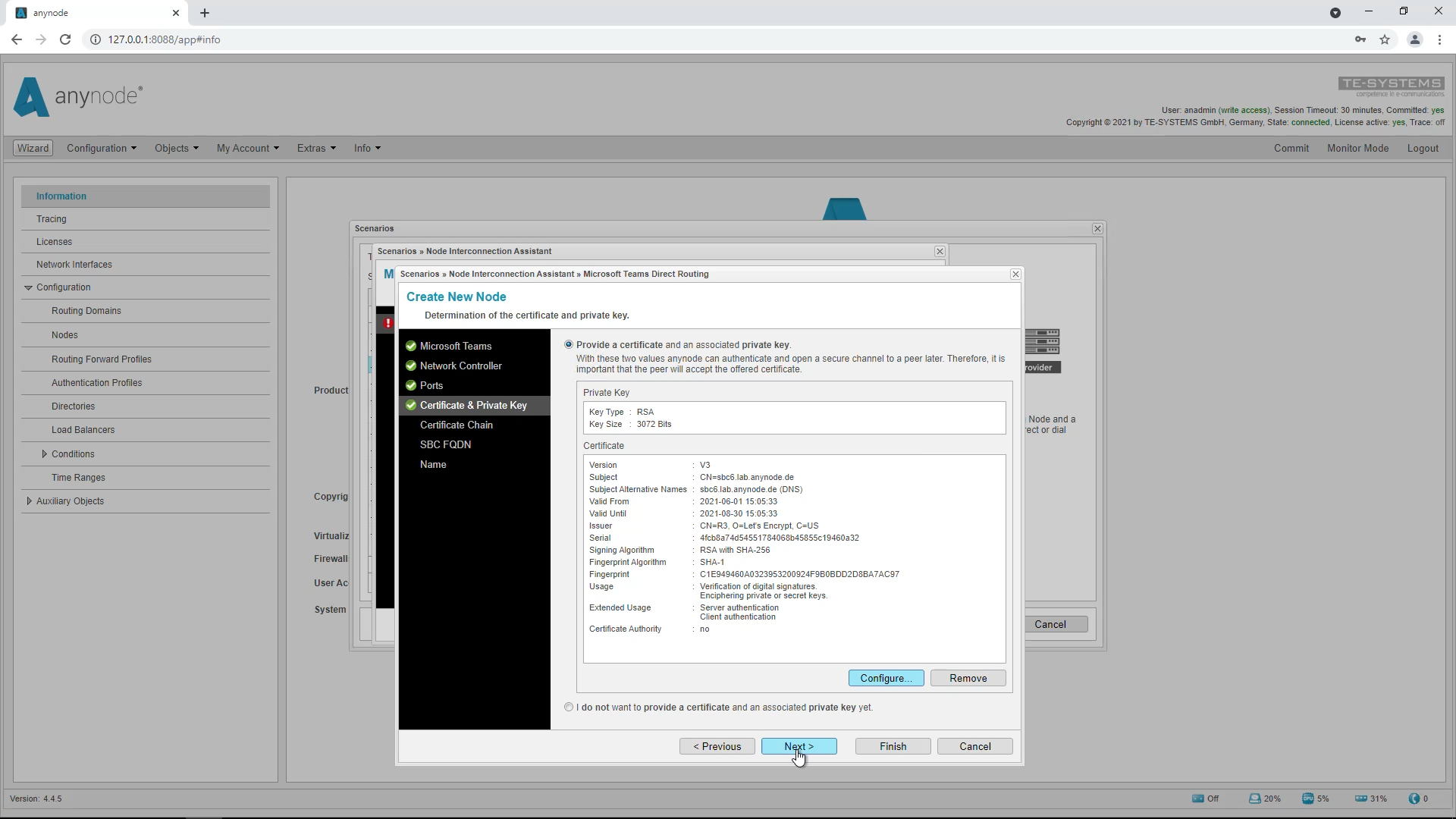
You can either select both files at the same time or select one after the other, i.e. go to “Choose Files” twice. The order in which you select the files is not important. Click on “Finish” to complete the import. An overview of the imported certificate will then be displayed.
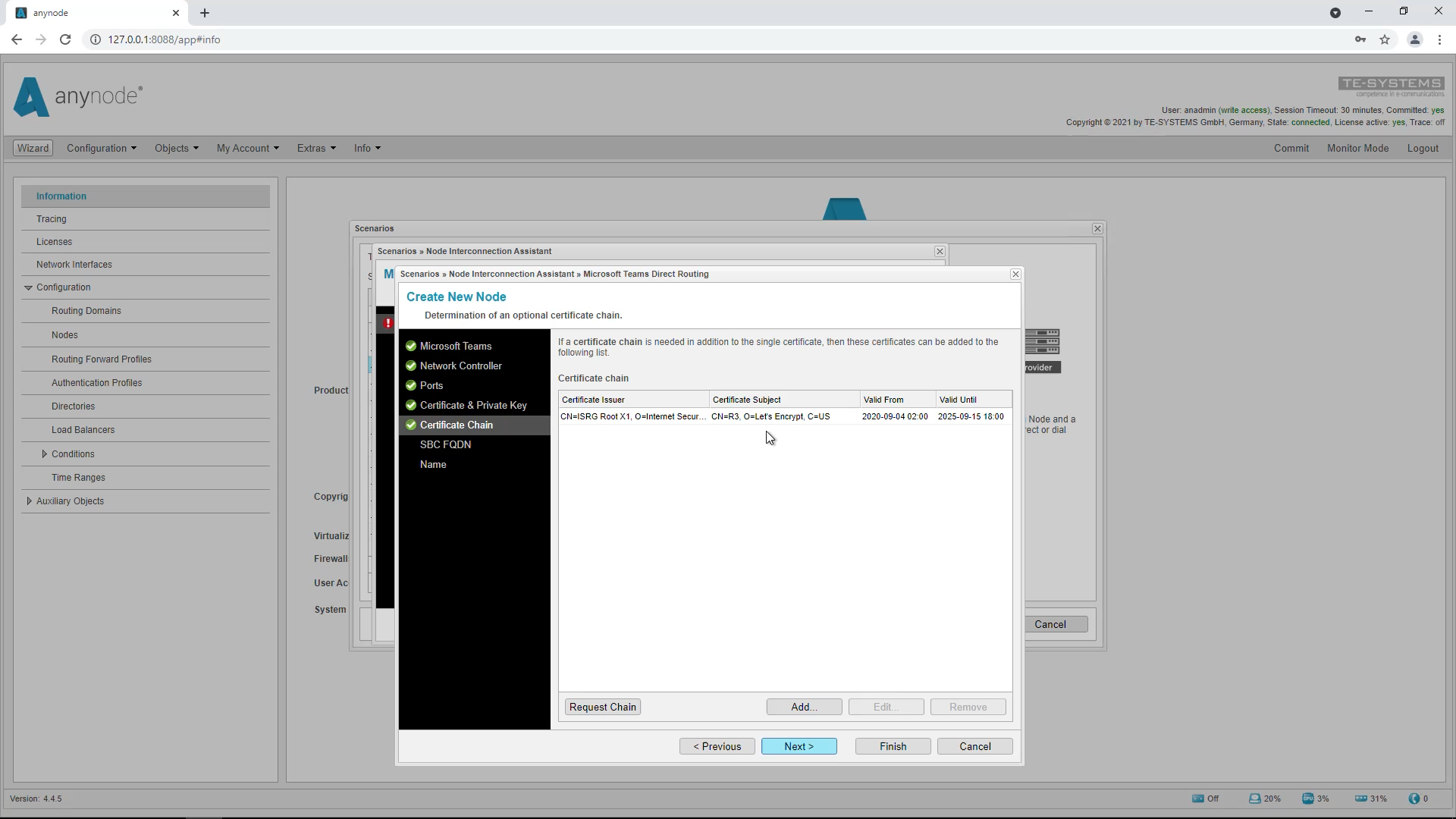
The certificate chain is automatically recognized and entered by the wizard.
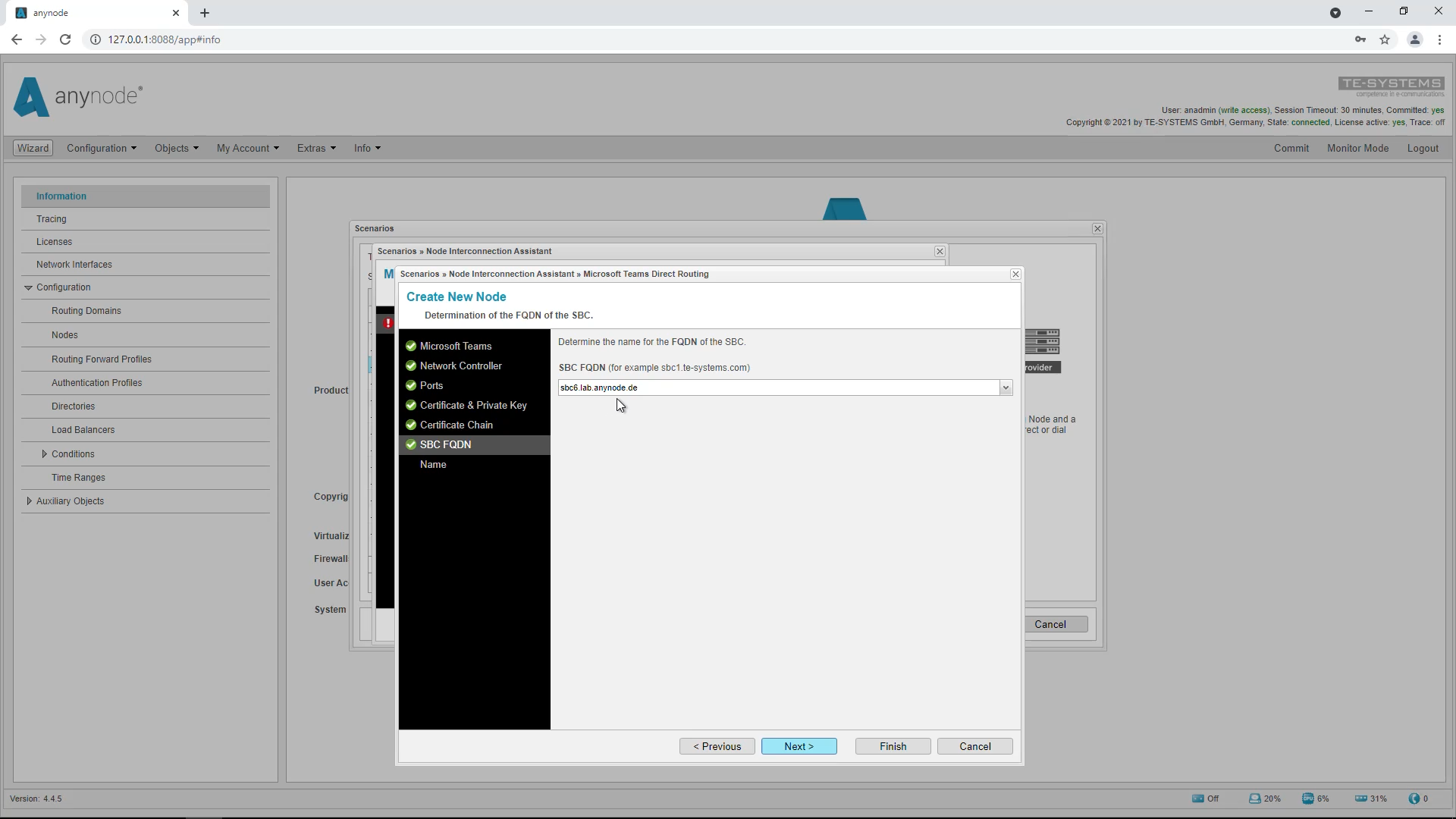
Next, you have to determine the Fully Qualified Domain Name that was configured in Office 365. anynode can automatically determine the appropriate FQDN names from these certificates. These are listed and offered for selection. Basically, you have to select the FQDN that has already been configured for anynode in Office 365.
The name of this node is, as always, freely selectable. The wizard has already inserted a suggestion here.
Creating a node: VoIP Provider
Now we are going to create our node for the VoIP provider.
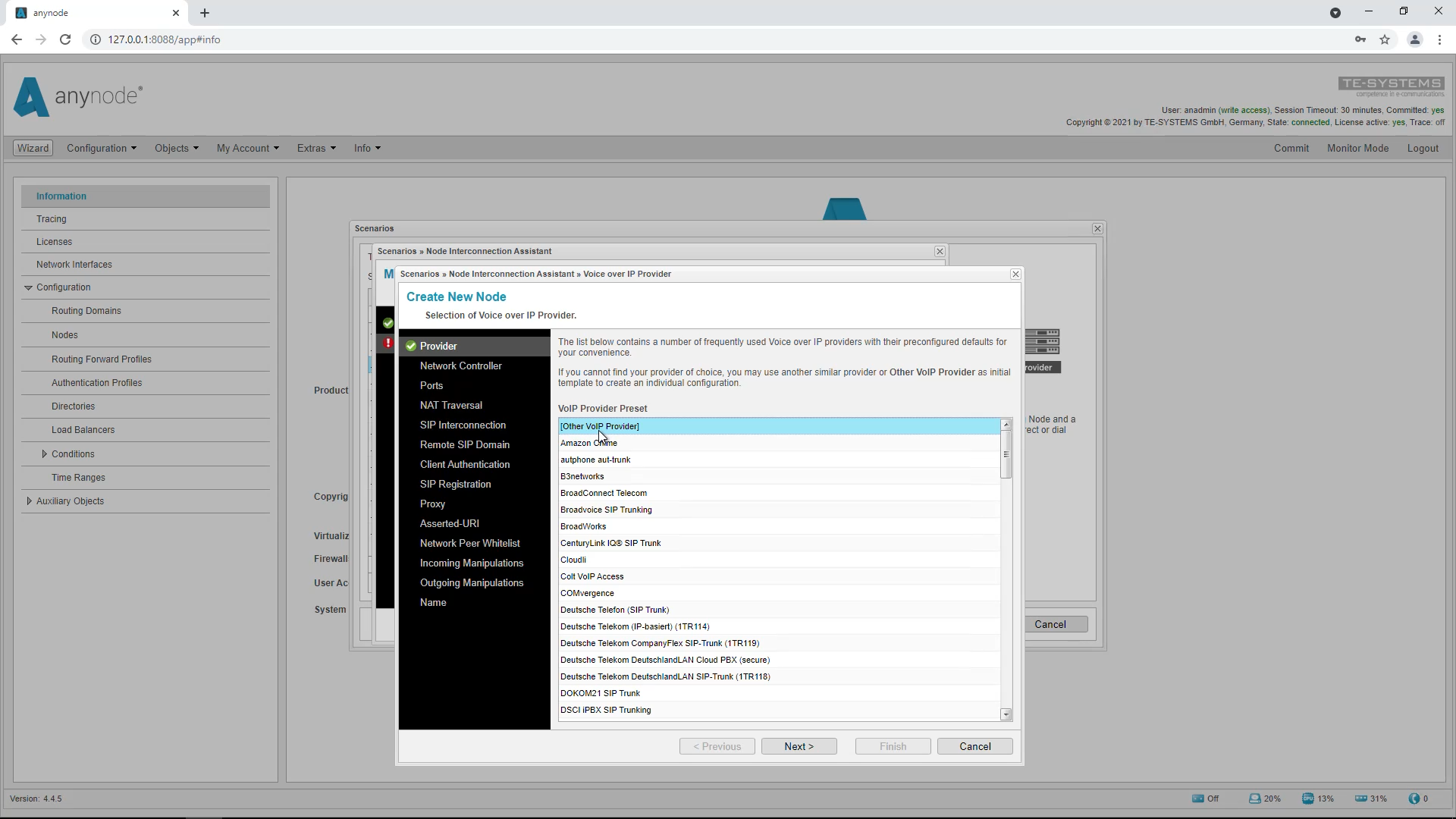
We can select a preconfigured Voice over IP provider from this list.
The Node Interconnection Assistant will automatically configure all provider specific settings for the remote SIP domain, registry URI and SIP proxy server. If the desired provider is not in the list, we can select “Other VoIP provider” which is located at the top of the list. For our example we will now select “Other VoIP provider”.
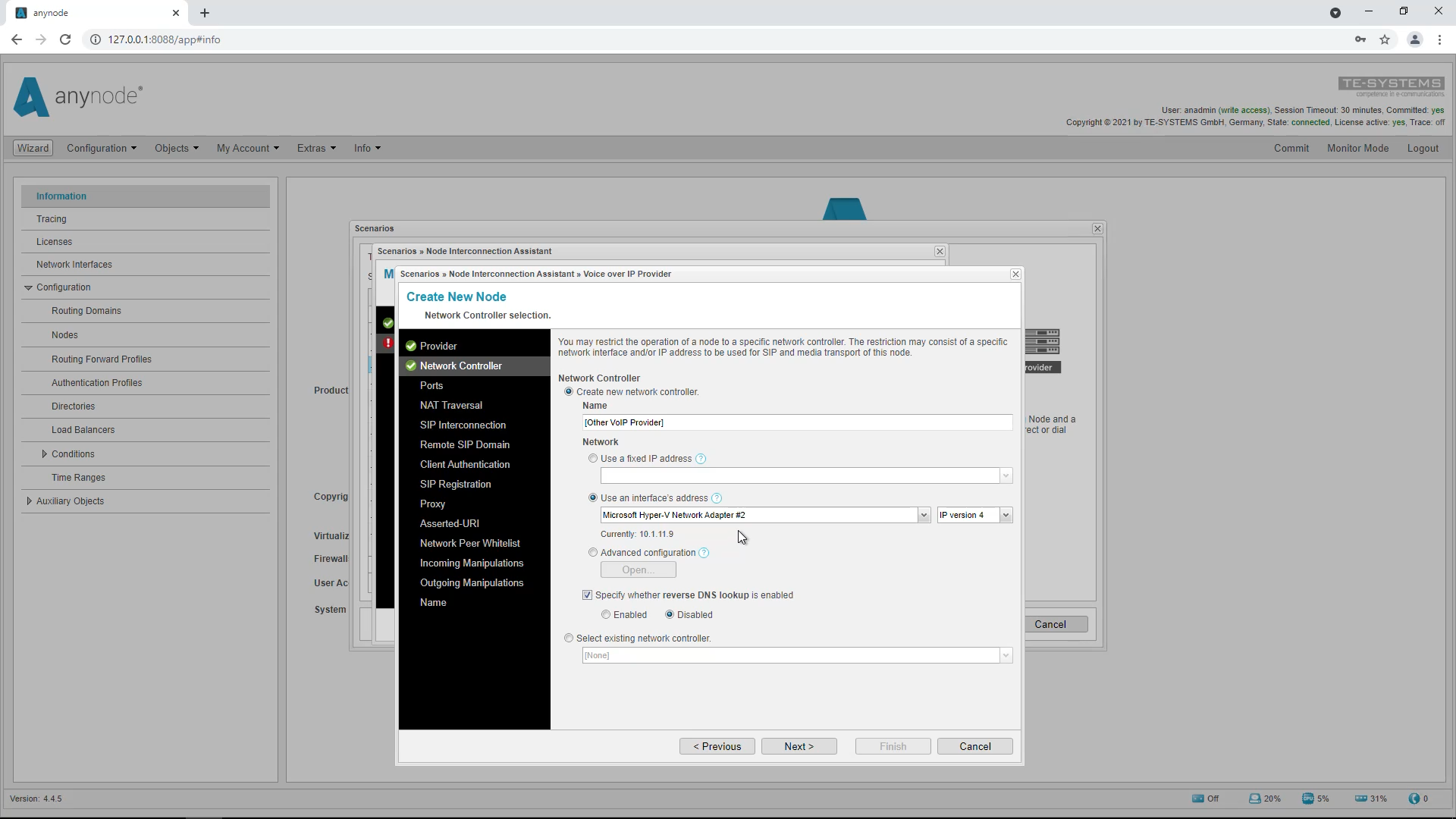
The configuration again generally starts with the setup of the node’s network controller. In our example, we select the Microsoft Hyper-V adapter so that the node communicates via the associated IP address.
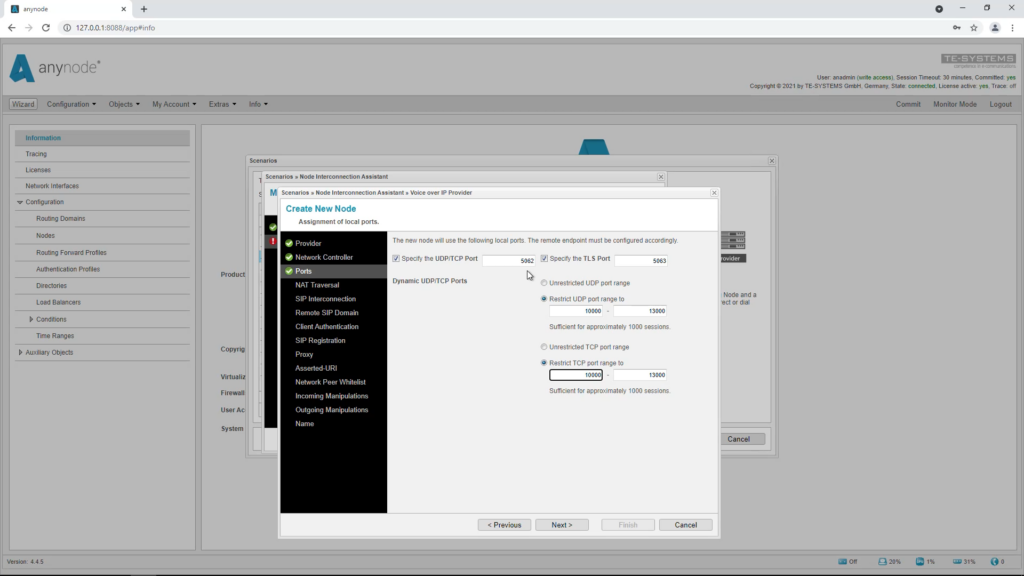
Next, define the ports to be used for SIP signaling. As a rule, you can simply accept the default values automatically provided by the wizard. Generally, default values are grayed out and if you do not check the box in front of them and change something, the default value is automatically active. The wizard recognizes if ports are currently assigned and thus counts up.
NAT Traversal allows traffic to reach the specified destination when a device does not have a public IP address. This is usually the case when your provider performs NAT or your firewall’s external interface is connected to a device that has NAT enabled.

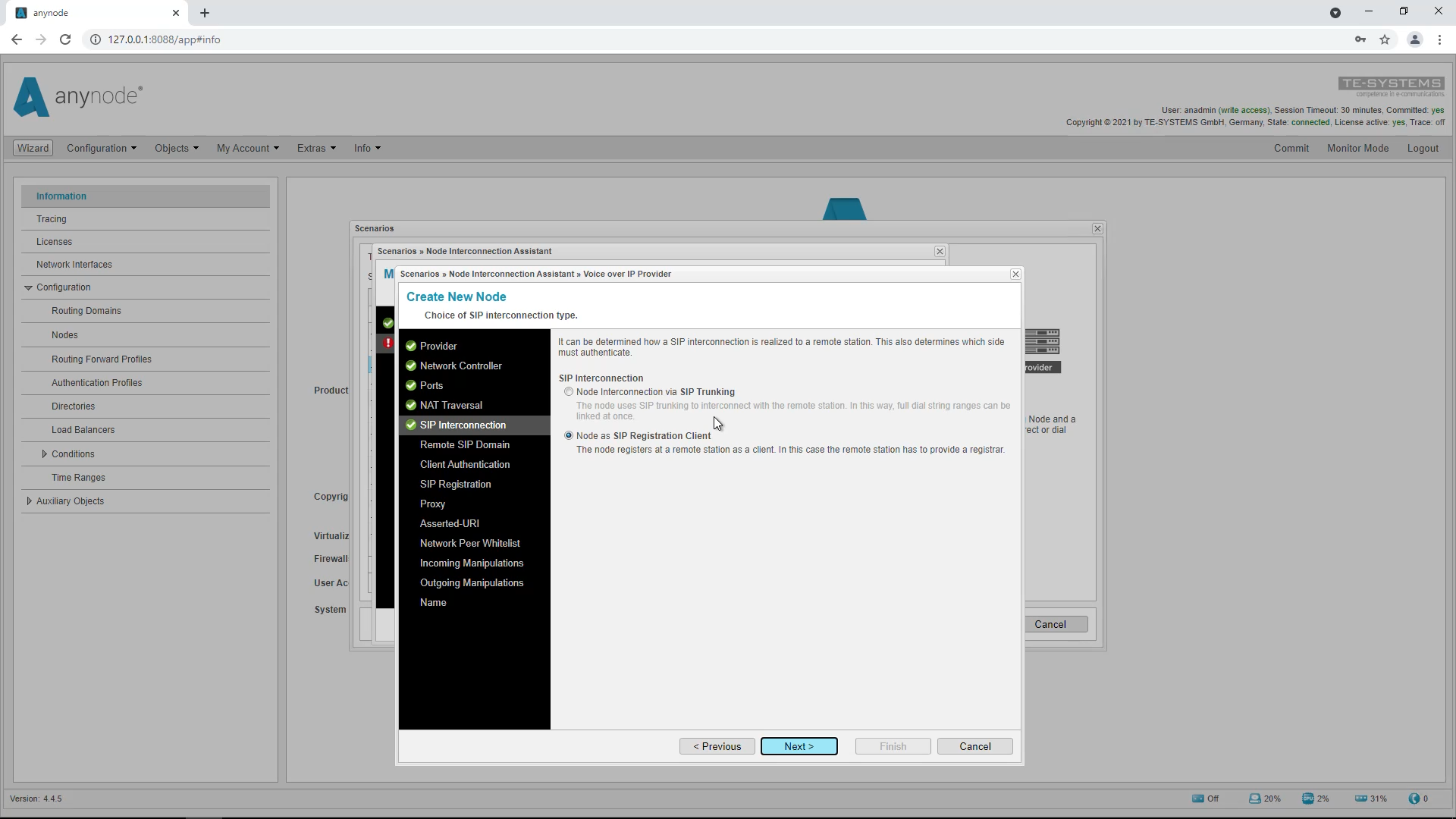
SIP Interconnection is used to decide how the connection to the provider is to be made. Generally there are the options “Node Interconnection via SIP Trunking” and “Node as SIP Registration Client”. In our example, the connection to our provider is made via registration with a registrar.
Therefore we select the option: “Node as SIP Registration Client“.
This is also the default value suggested by the wizard. In practice, it also happens that providers work with direct peer to peer SIP trunks. In these cases, it is usually only necessary to configure the IP addresses of the remote side in anynode. The “SIP trunking” variant can then be selected for this.
The Remote SIP Domain defines where you can reach the remote endpoint for outgoing calls.
Select the “Use URI representation” field under “Remote SIP Domain” and enter the URI of the provider there. In our case this is: registrar.provider.anynode.de
Please note that the sip: is automatically inserted by the wizard after the input.

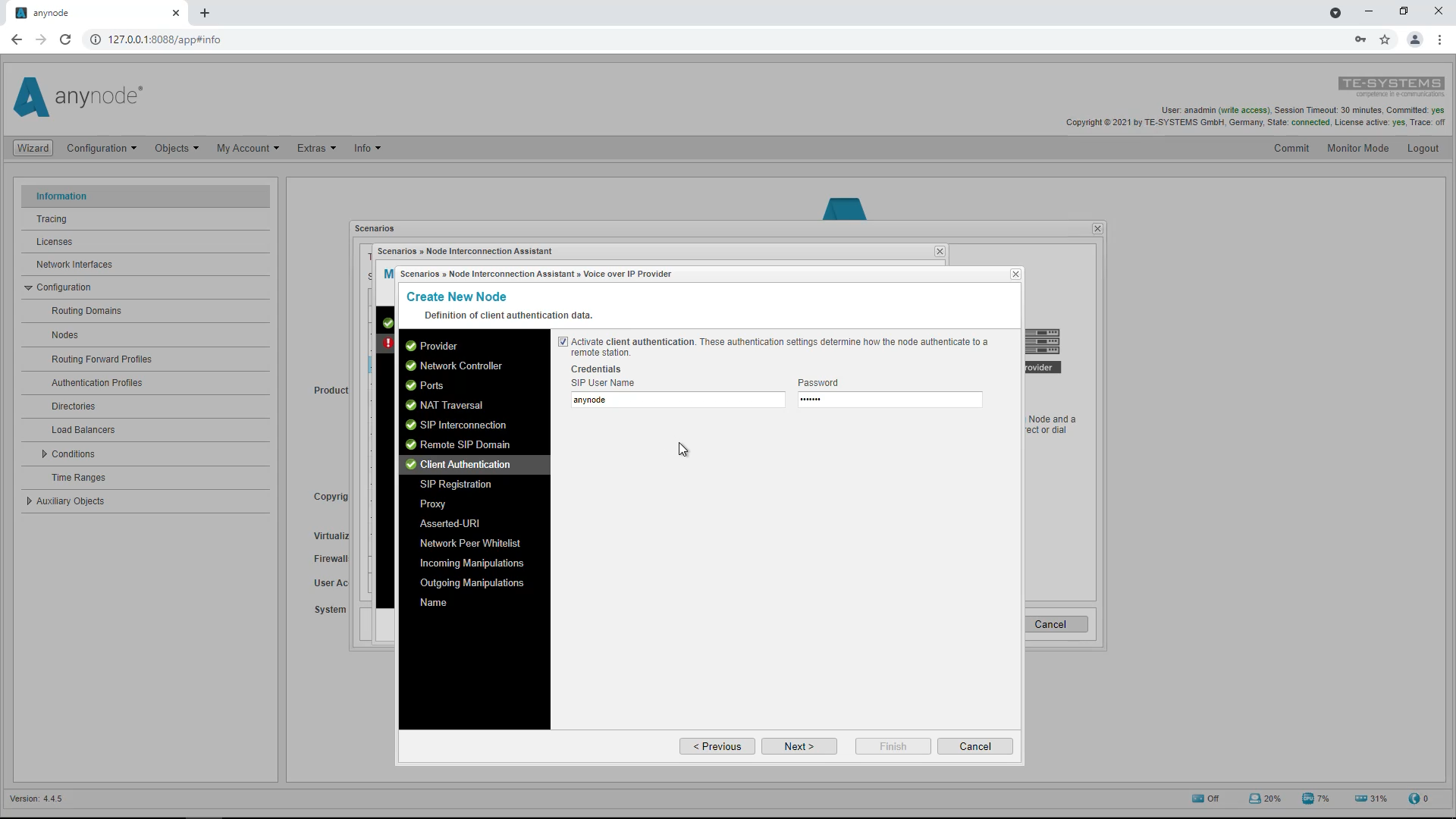
Our provider has given us a username and password with which we authenticate ourselves to the registrar.
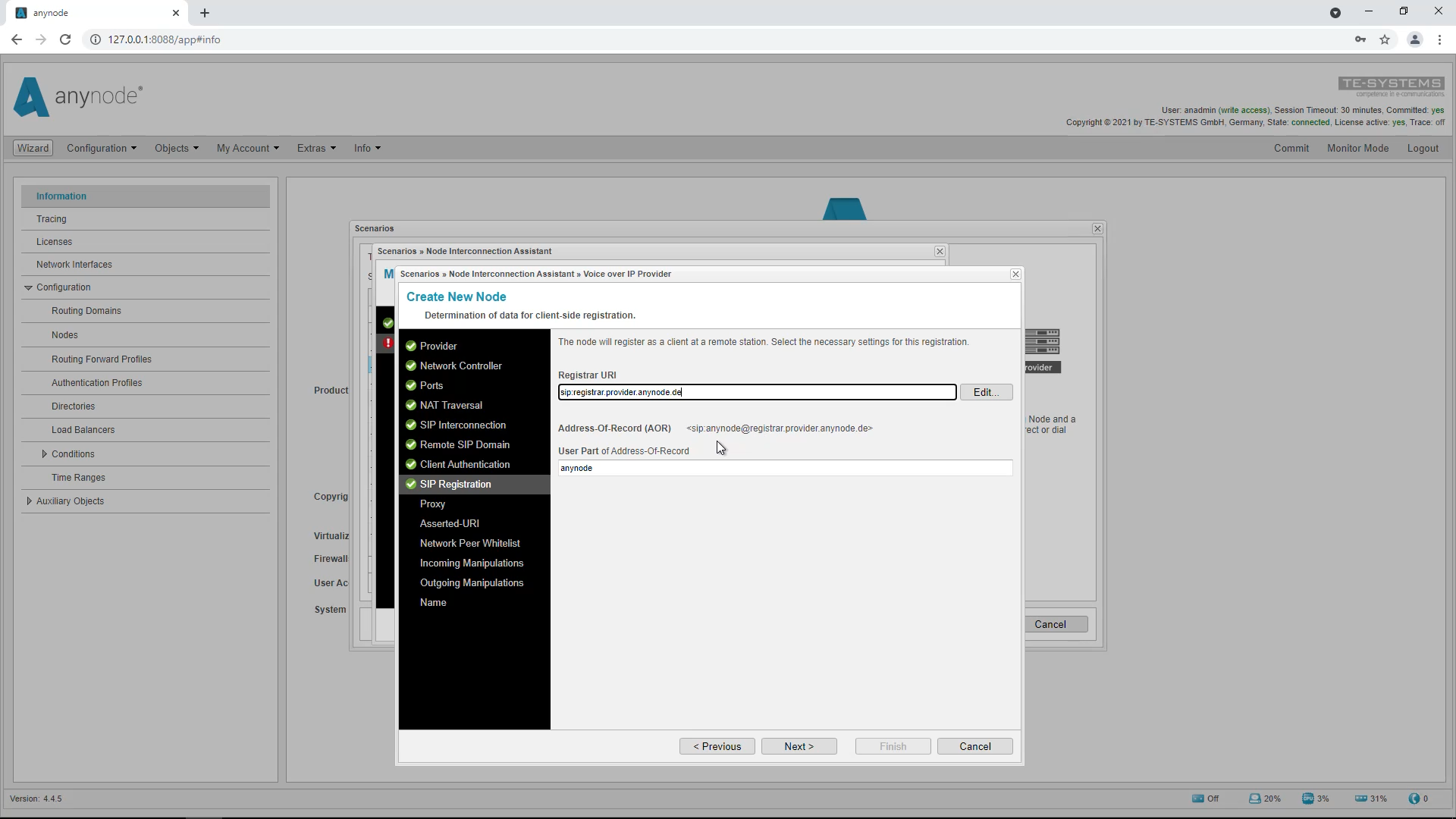
The wizard automatically fills in the SIP Registration input screen with the Registrar URI and the Address-of-Record (AOR) based on the previously specified remote SIP domain and user name.
The input mask for the proxy server is optional and is not used for our sample configuration, so we skip this point.
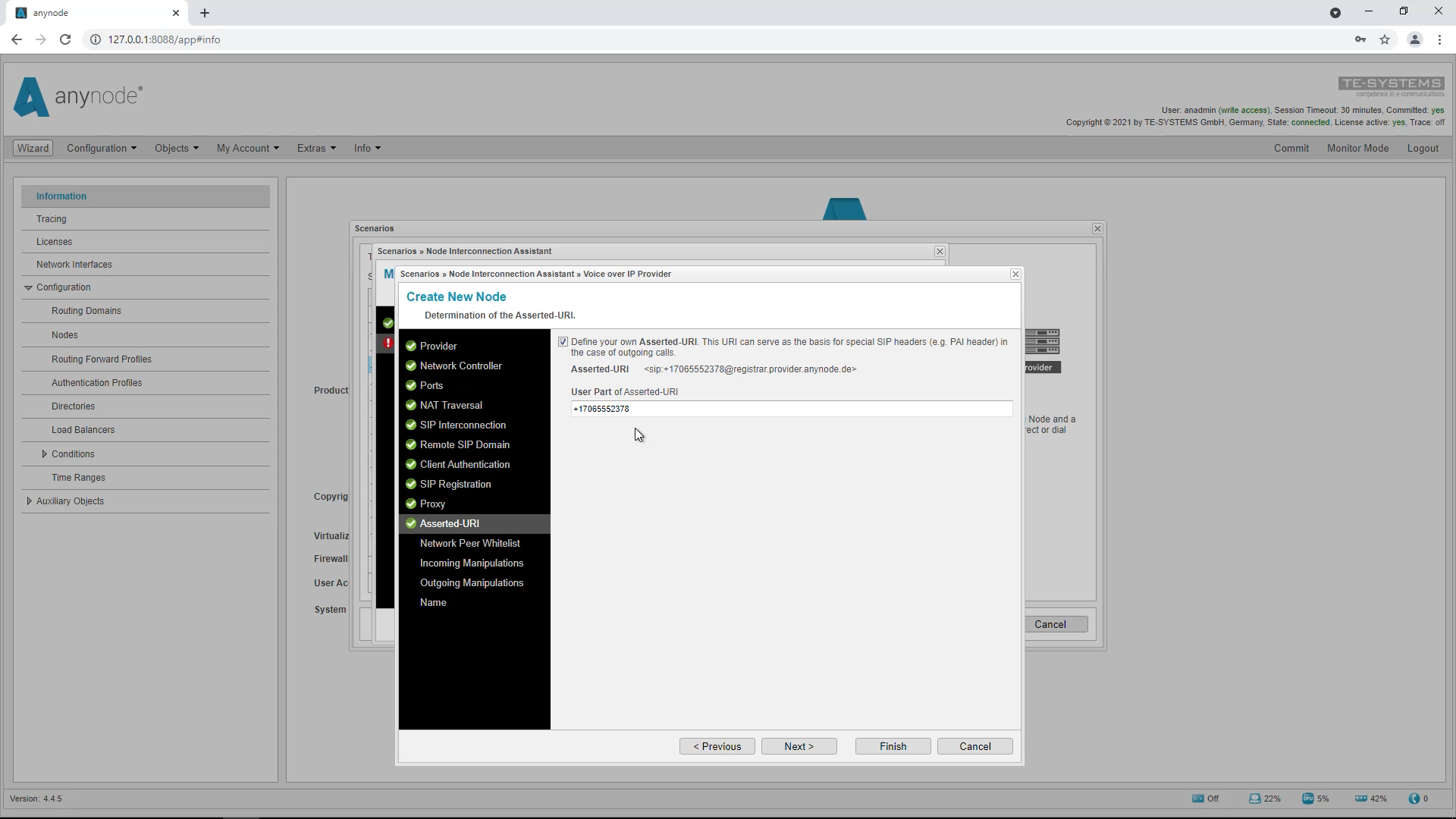
For the Asserted URI, you should use the default setting and leave the checkmark enabled. Often providers want to have a correct phone number from the phone number block in the P-Asserted Identity header. This is to ensure the provider that the number really comes from a valid number. Enter here the user part of the correct phone number with which you are registered at your provider.
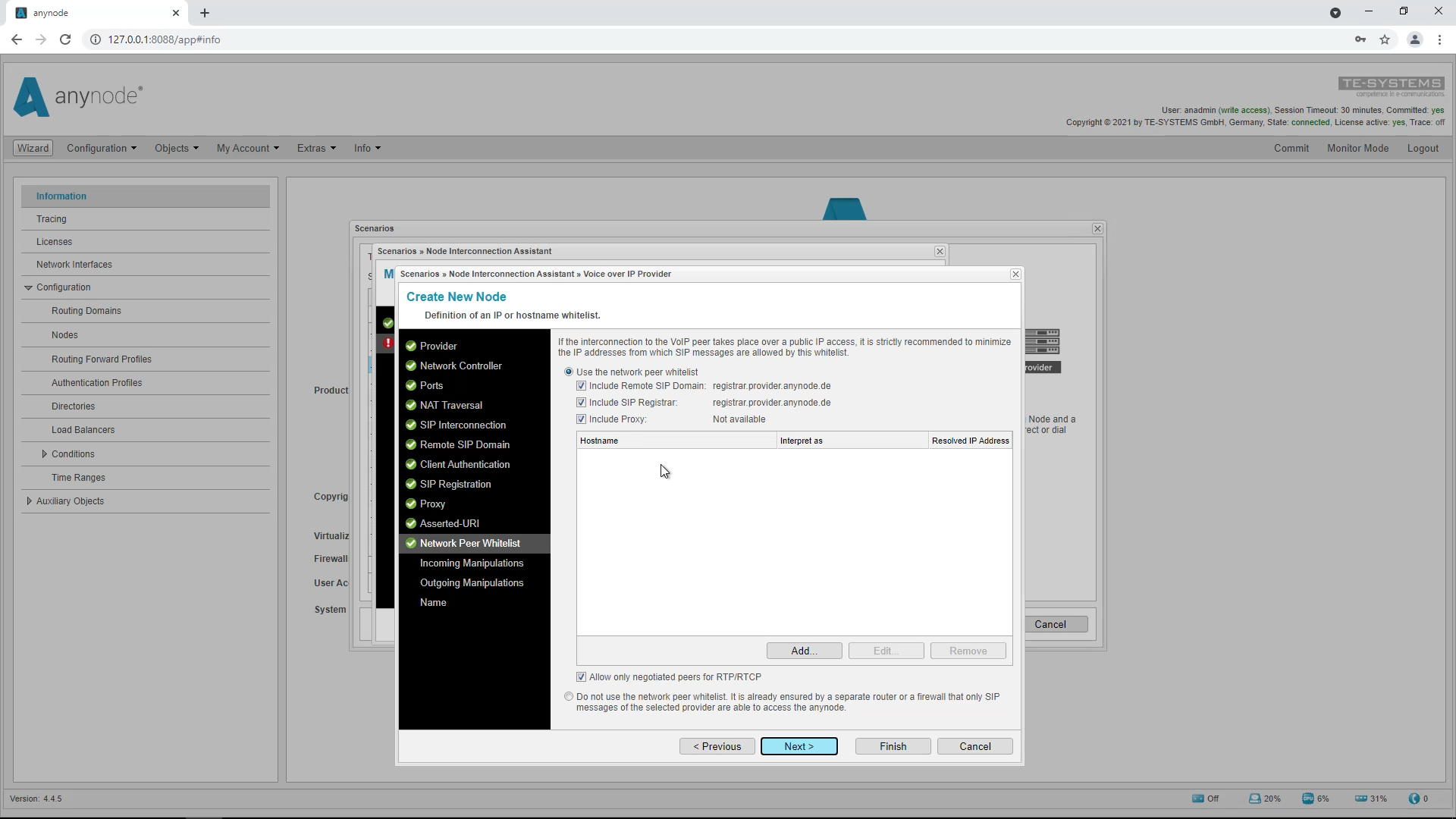
The wizard has automatically made the settings for the Network Peer Whitelist. Now accept the suggested default values to allow only SIP messages from the selected provider.
Here you can already enter manipulations for call numbers. These are required, for example, to convert incoming calls to anynode into the E.164 format or outgoing calls into another desired format. For this topic we recommend our tutorial video “Call number manipulation and routing basics”.
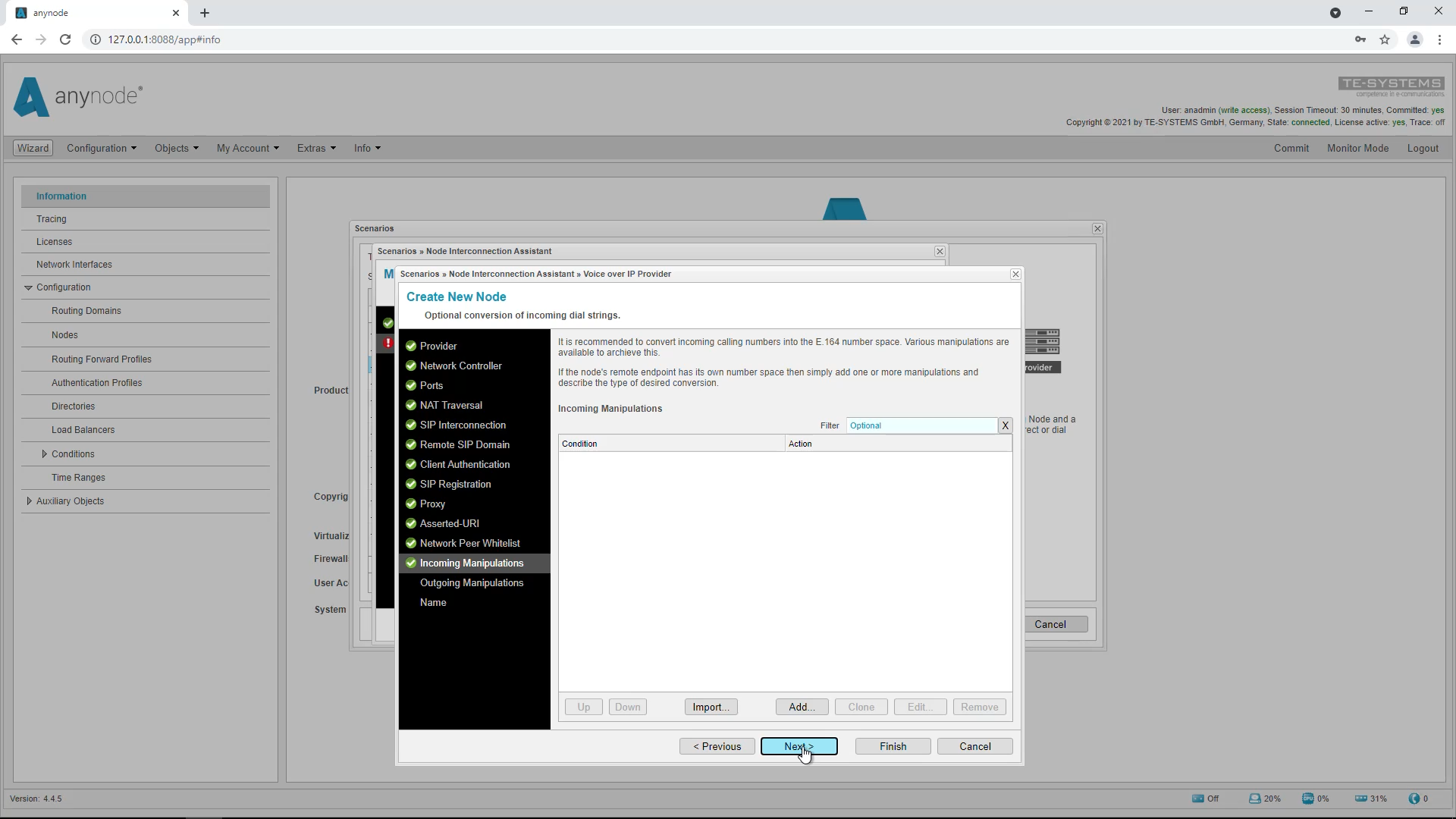
The name of this node is, as always, freely selectable. The wizard has already inserted a suggestion, we change it slightly.
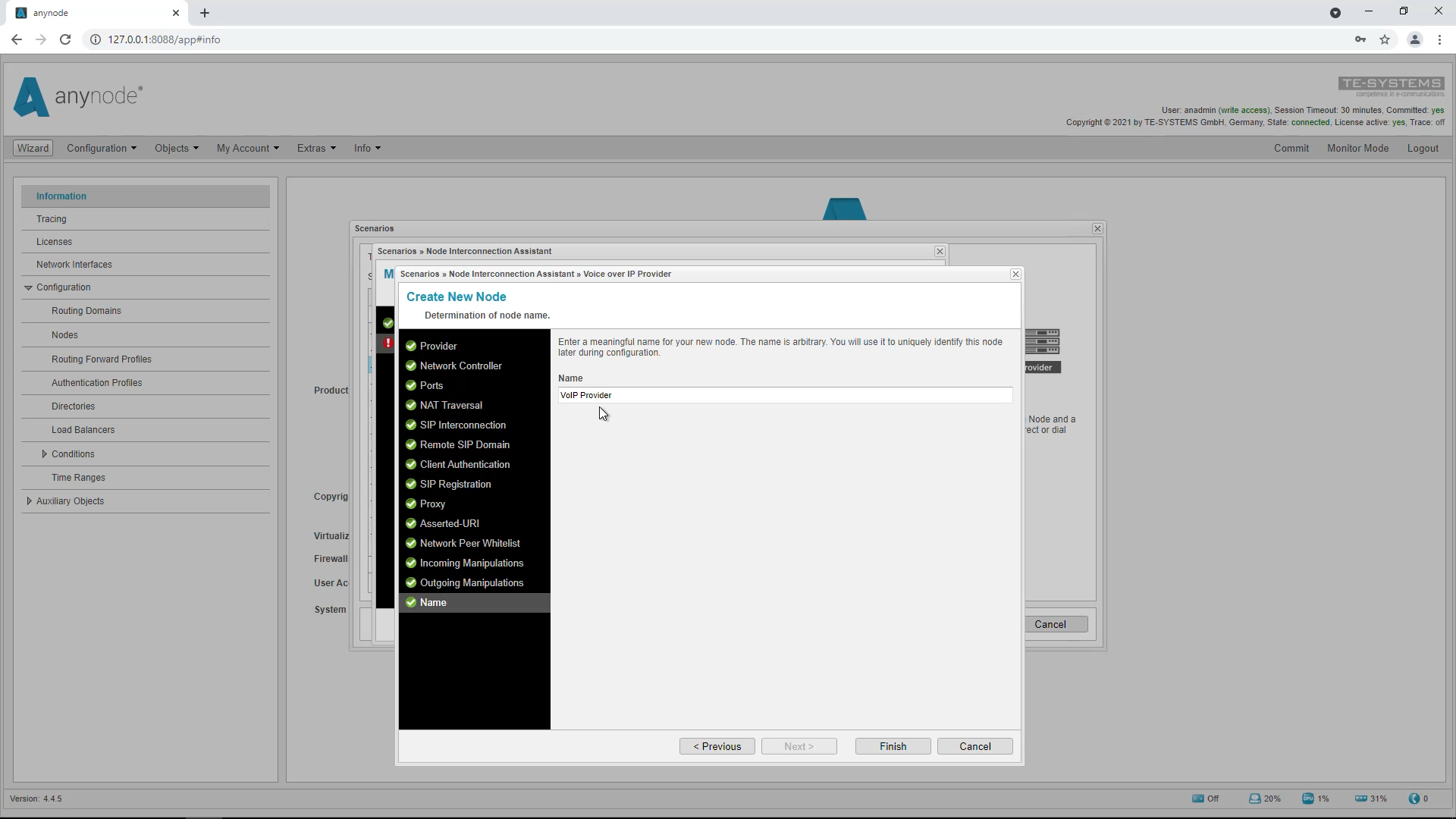
Determination of Routing Type
In “Determination of Routing Type“, an important security feature of anynode is used again in this case. The destination number, which comes from the provider, is checked each time for the correct root number. Only calls that are really for the root number will be allowed.
Select “Use direct routing with prefix filter” and enter the root number with prefix in E.164 number format.
Click on “Finish” to exit the wizard.
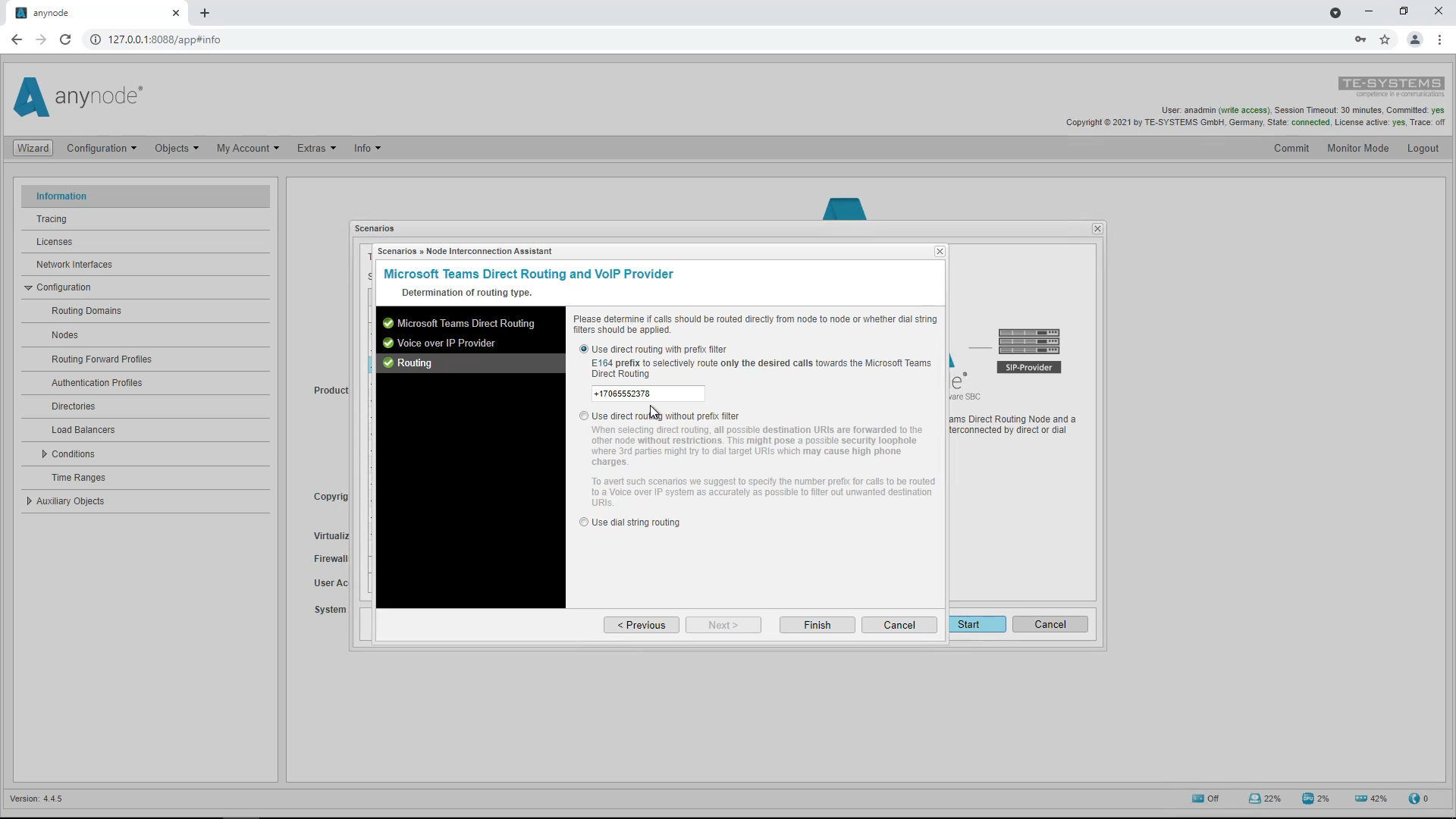
Routing Domain
Click on “Routing Domain” in the left menu tree. You will notice that the wizard has already created the desired routes here. You can find more information about routing in our tutorial video “Number manipulation and routing”.
Don’t forget to finally accept the configuration by clicking on “Commit”.
Call Test
We are now performing a call test. External numbers can now be reached with the Teams client. The Teams client always dials numbers in E.164 format. This should be supported by the provider. If not, the numbers can be converted as needed using the manipulations. In the active sessions it can be noted how the call from the Teams client uses the route to the provider. Of course, the call in the other direction from the provider to the Teams client is also possible if the Teams number is dialed. In this case, the route moves to Microsoft Teams Direct Routing.
We have reached the end of this video workshop and thank you for your attention. Have a great day.